Ingestion - data sources
In this module, we will explore Amazon CloudWatch ingestion capabilities that enable you to discover, audit, and configure telemetry collection across your AWS environment. CloudWatch Ingestion provides a centralized approach to ensure comprehensive data collection and monitoring, whether you're managing a single account or multiple accounts through AWS Organizations.
Key capabilities
- Collect and consolidate logs from multiple AWS accounts and regions
- Centralize operational, security, and compliance data from AWS services and third-party sources
- Eliminate the need for multiple data sources and complex ETL pipelines
CloudWatch Ingestion supports popular AWS log sources including Amazon VPC Flow Logs, AWS WAF Logs, Amazon Route 53 Resolver Query Logs, Amazon NLB, Amazon EKS Control Plane Logs, AWS CloudTrail Events, and Amazon Bedrock AgentCore Logs. Additionally, it offers managed collectors for third-party sources such as CrowdStrike, Okta, and Palo Alto Networks.
Ingestion overview
The Ingestion page in the CloudWatch console displays the total number of each resource that was discovered by CloudWatch, the number of resources providing telemetry, and the percentage of discovered resources that are providing telemetry.
The page provides three core components for managing telemetry collection:
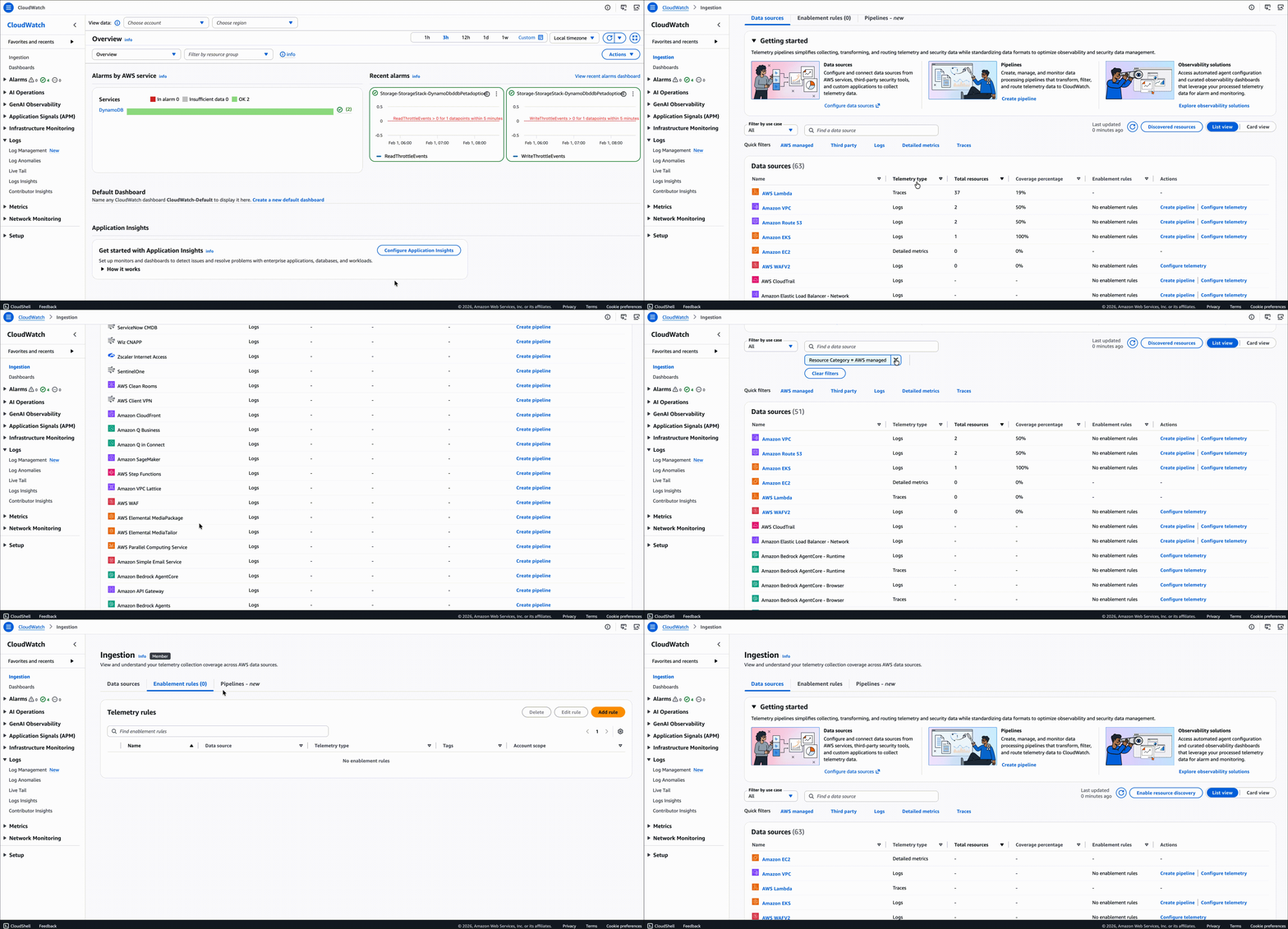
Key Components
| Component | Description |
|---|---|
| Data Sources | Provides a new way to discover and organize your telemetry (metrics, logs and traces) based on the source. |
| Enablement Rules | Help you standardize telemetry collection across your organization or accounts and ensure consistent monitoring coverage. |
| Pipelines | Provides a centralized way to collect, transform, and route telemetry data from various sources to different destinations. |
Through these hands-on exercises, you'll learn how to effectively configure and manage telemetry ingestion across your AWS environment.
For more information, refer to Audit and turn on AWS telemetry related configurations
Data sources
Data sources provide a new way to organize, discover, and manage your log data based on the originating source. Unlike traditional log groups that require manual organization, data sources automatically discovers and categorizes logs, making it easier to understand your logging landscape at scale.
With data sources, CloudWatch automatically identifies logs from AWS services and third-party sources, discovers their schema, and organizes them by source type.
The telemetry configuration and auditing experience displays AWS resources in two places:
Ingestion - data source tab
This page shows the AWS resources that you can send to CloudWatch. For specific resource types, it displays the percentage of resources with telemetry that are configured and the total number of resources detected. You can filter the display by account ID or by tags applied to your resources.
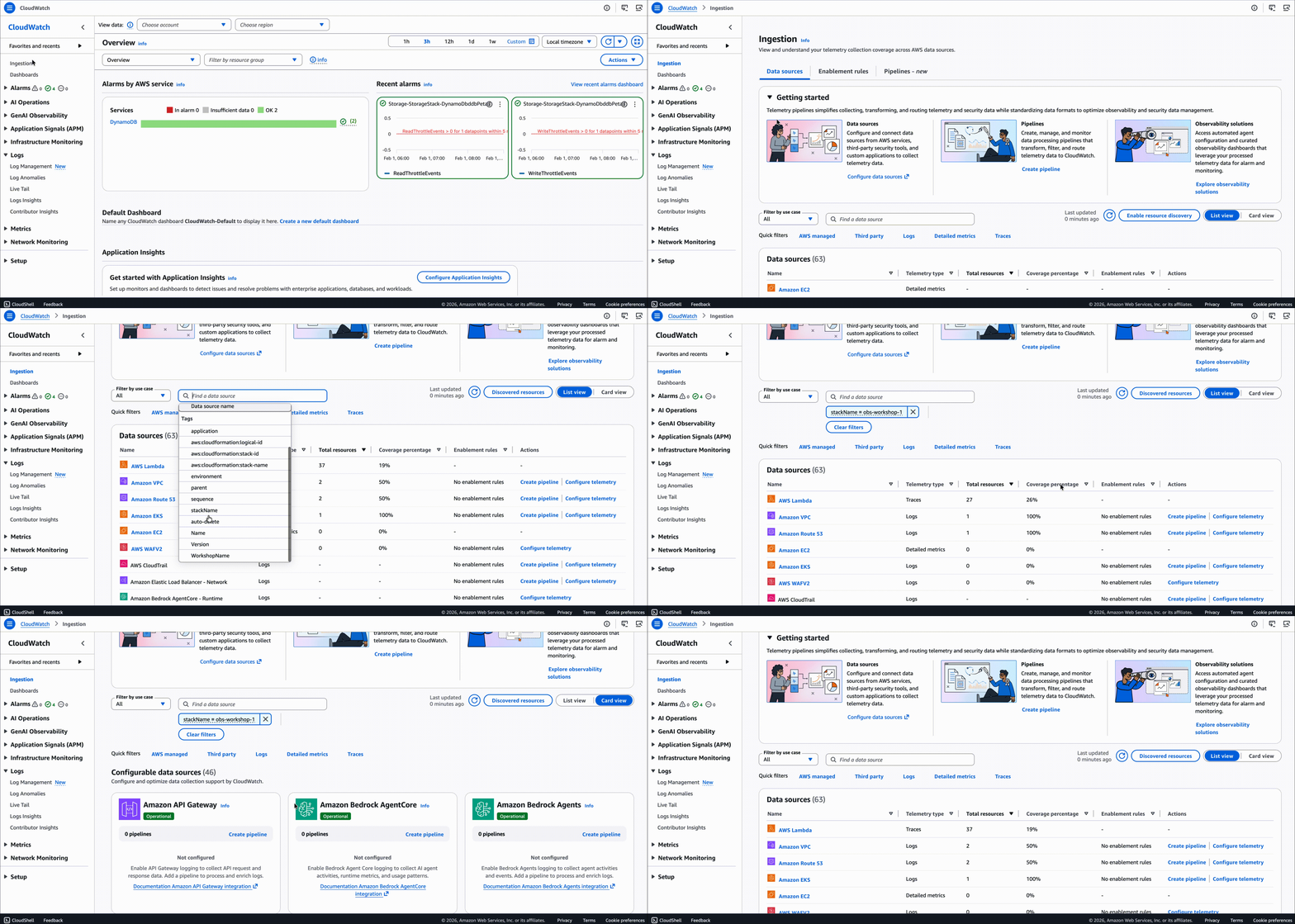
Discovered resources
This page shows details about each AWS resource that has been discovered, including the resource ID, the type of telemetry each resource is providing, and the time when information about the resource was last refreshed.
To discover AWS resources and view their telemetry configuration status across your organization or account, click Enable resource discovery.
1) Go to the CloudWatch Console. 2) Select Ingestion from the left navigation pane. 3) Click Enable resource discovery.
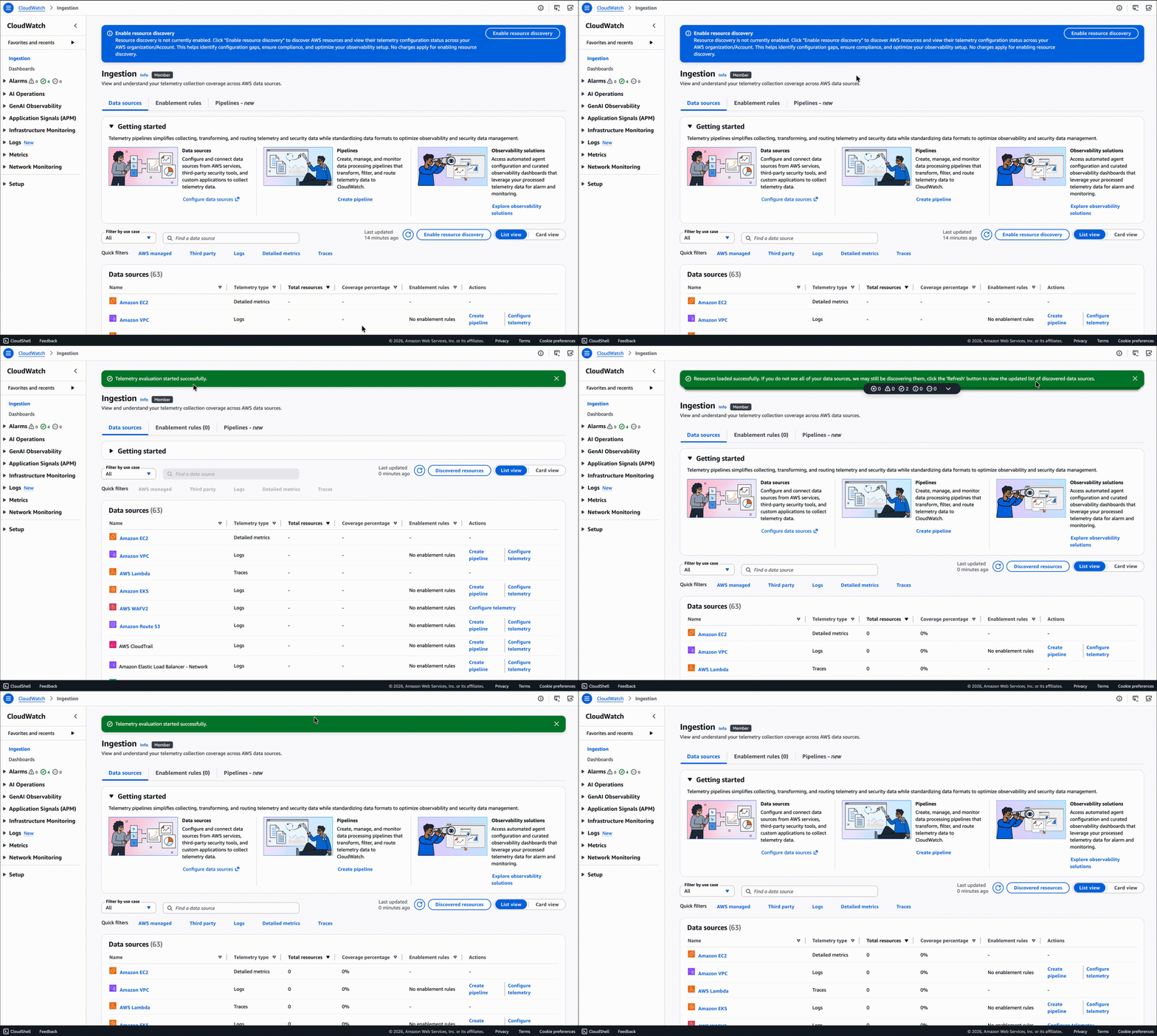
After enabling resource discovery, the Discovered resources button appears and shows all resources discovered:
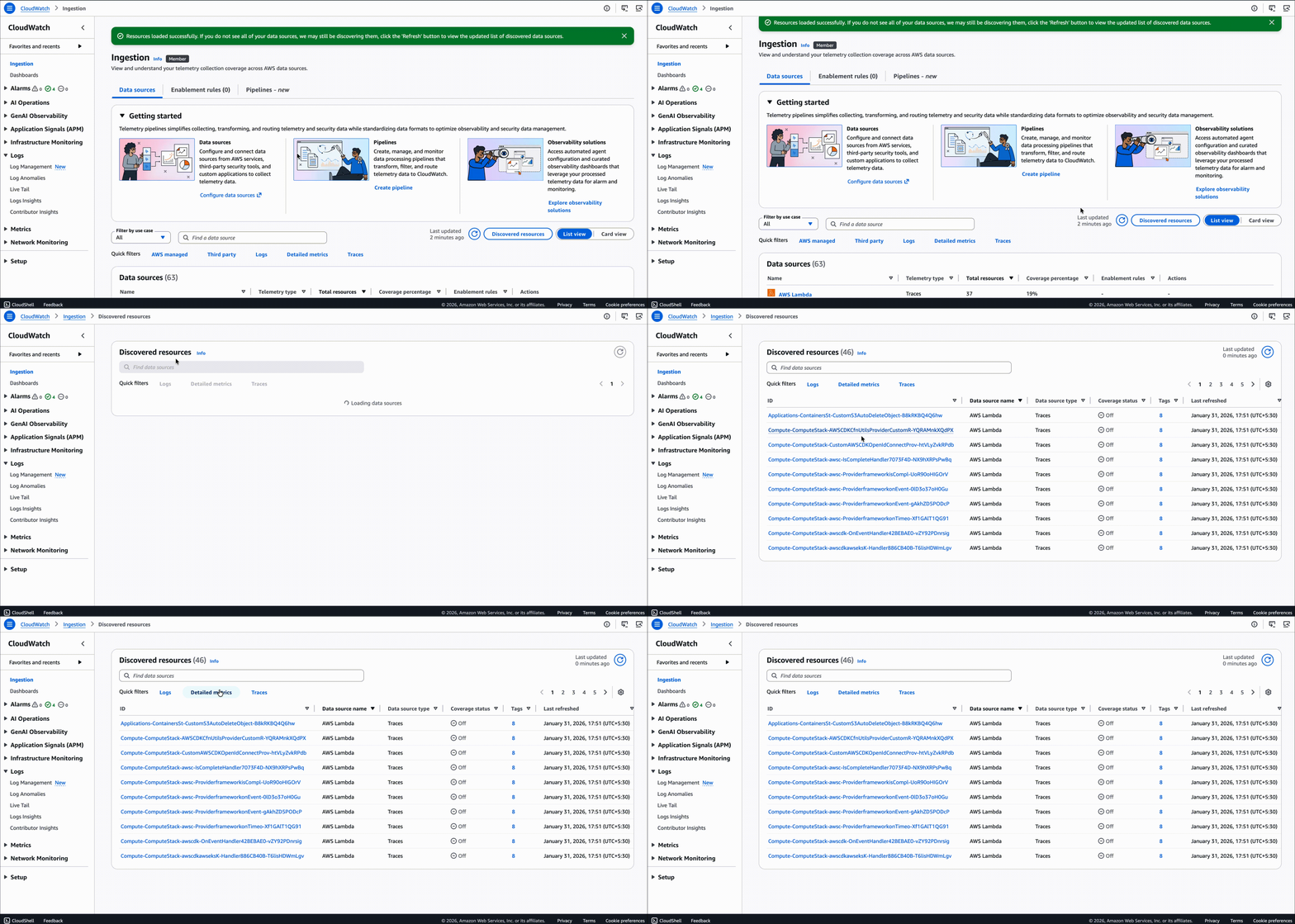
To view information about a resource or change its telemetry settings, click the resource ID.
For more information, refer to:
Data source discovery and management
Data sources provide service-based log organization and simplified discovery across your AWS infrastructure. You can easily locate logs from specific services and filter by log type without needing to know individual log group names or structures.
For third-party sources and optionally for application logs, data sources work with CloudWatch pipelines to categorize your logs.
Data source identifiers
Data sources categorize logs using two key identifiers:
| Identifier | Description |
|---|---|
| Data Source Name | The AWS service, third-party source, or application that generates the logs (e.g., Route 53, Amazon VPC, CloudTrail, Okta SSO, CrowdStrike Falcon) |
| Data Source Type | The specific type of log generated by that service |
Understanding schemas
A schema defines the structure of log data, including what fields are present and how information is organized. A single data source can produce multiple types of logs with different schemas.
Example: AWS CloudTrail
CloudTrail has two data source types:
| Type | Description |
|---|---|
| Management events | Track control plane operations like creating or deleting resources |
| Data events | Track data plane operations like S3 object access |
Each type has a different schema because they capture different kinds of information.
Getting started with data sources
The configuration method depends on the type of logs you're working with:
- AWS service logs
Logs from supported AWS services are automatically grouped by data source without any additional configuration. CloudWatch Logs recognizes these logs and applies the appropriate data source name and type based on the originating service.
Supported AWS services include Amazon VPC Flow Logs, AWS CloudTrail, AWS WAF Logs, AWS Lambda Logs and more. For a complete list, see Supported AWS services for data sources.
- Third-party logs
Third-party logs require CloudWatch Pipelines for data source categorization:
1) Configure a pipeline to ingest logs from supported third-party sources (Microsoft Office 365, Okta, CrowdStrike, Palo Alto Networks). 2) Specify the data source name and type in the pipeline configuration. 3) CloudWatch Logs automatically categorizes all logs processed by the pipeline.
Pipelines can optionally transform third-party logs into Open Cybersecurity Schema Framework (OCSF) format. When OCSF transformation is enabled, the data source name and type are automatically determined based on the OCSF schema mapping.
- Application logs
For custom application logs, you can categorize them by data source using one of these methods:
Method 1: Log group tags
Add tags to your log groups:
- Tag key: cw:datasource:name -> Specifies the data source name
- Tag key: cw:datasource:type -> Specifies the data source type
Method 2: Pipeline configuration
Configure data source information through log processing pipelines when ingesting your application logs.
WARNING: Data source names cannot start with "aws" or "amazon" to avoid conflicts with AWS service logs.
Accessing data sources
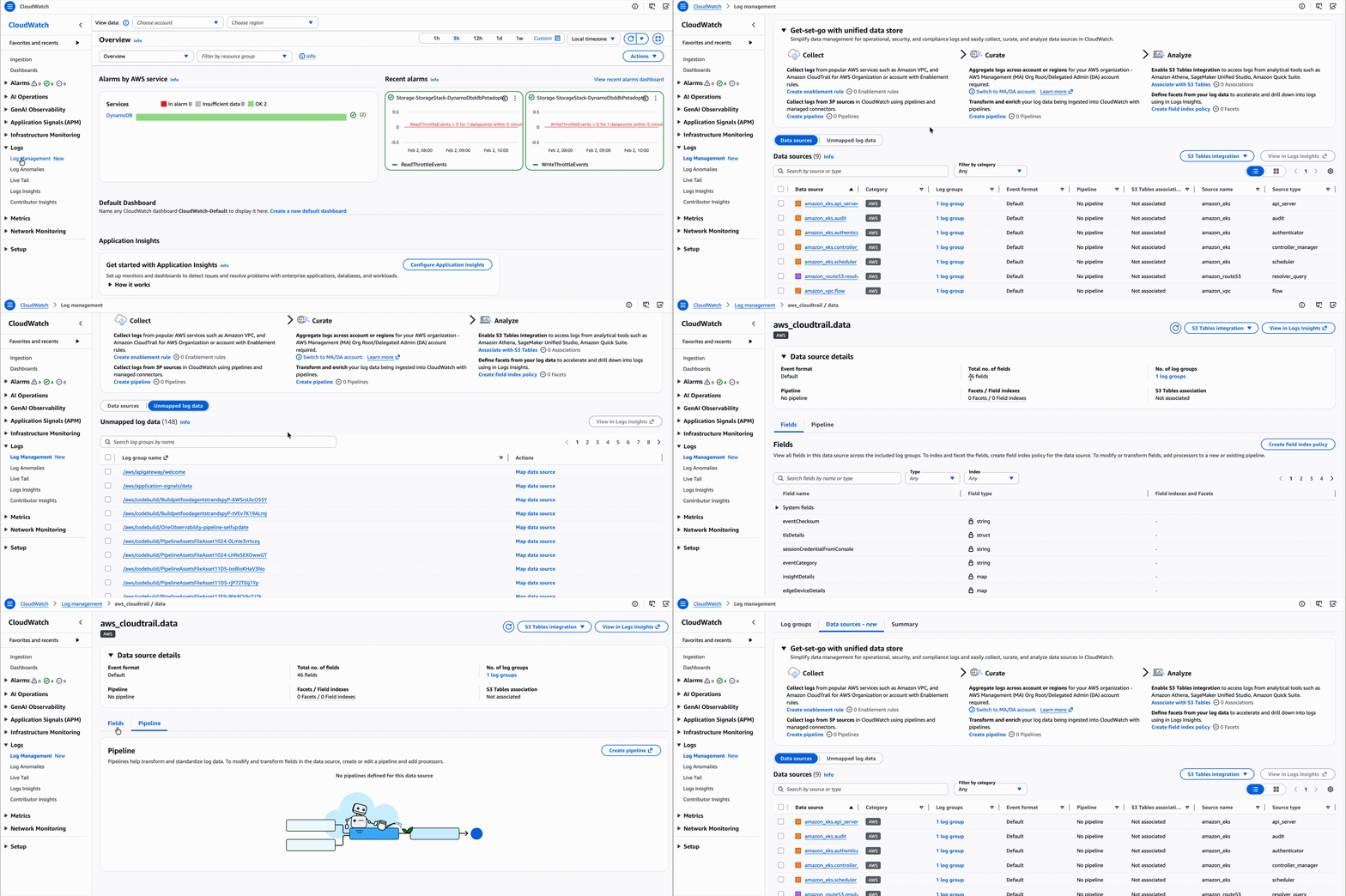
1) Go to the CloudWatch Console. 2) In the navigation pane, under Logs, choose Log Management. 3) View your log data by log groups or data sources:
| Tab | Description |
|---|---|
| Log groups | Shows granular search of your log data by specific log groups |
| Data sources | Organize and manage similar logs together |
| Summary | Provides a birds-eye view of your log data and a way to jump start on policies and features |
From the Data sources tab, you can define and manage data sources:
- Data Sources: CloudWatch Logs automatically consolidates your log data by data sources and types
- Unmapped Log Data: To map data source for unmapped logs, define the data source information in the tag keys on your log groups
Using the AWS CLI
To list distinct data sources and types of logs in your account:
aws logs list-aggregate-log-group-summaries --group-by DATA_SOURCE_NAME_AND_TYPE
Once data source is defined, you will be able to create pipelines, associate them with S3 tables integration, define indexes or facets, and query them together using data source as the query scope.
Configure data sources
In this section, we will categorize custom application logs by mapping unmapped log data to a data source using log group tags.
Step-by-step instructions
1) Go to the CloudWatch Console. 2) In the navigation pane, under Logs, choose Log Management. 3) Select the Data sources tab, then choose Unmapped log data. 4) Locate and select the log group that contains name Microservices-Microservice-petlistadoptionpyecsloggroupXXXXXX 5) Under Actions, click Map data source and provide the values:
- Data source name: petlistadoptionpyecsloggroup
- Data source type: python
6) Confirm Map data source.
WARNING: The log group will continue to show up in the Unmapped data list until new data is ingested and processed.
7) Generate traffic to create new log data:
- Navigate to the CloudFormation console
- Locate the Microservices-Microservice stack and find the PetSiteUrl from Outputs tab
- Open the PetSiteUrl in your browser
- Perform a few operations in the Pet Adoptions application
8) Return to Log Management → Data Sources tab. 9) Verify that the log group now appears under Data sources with Category Custom:
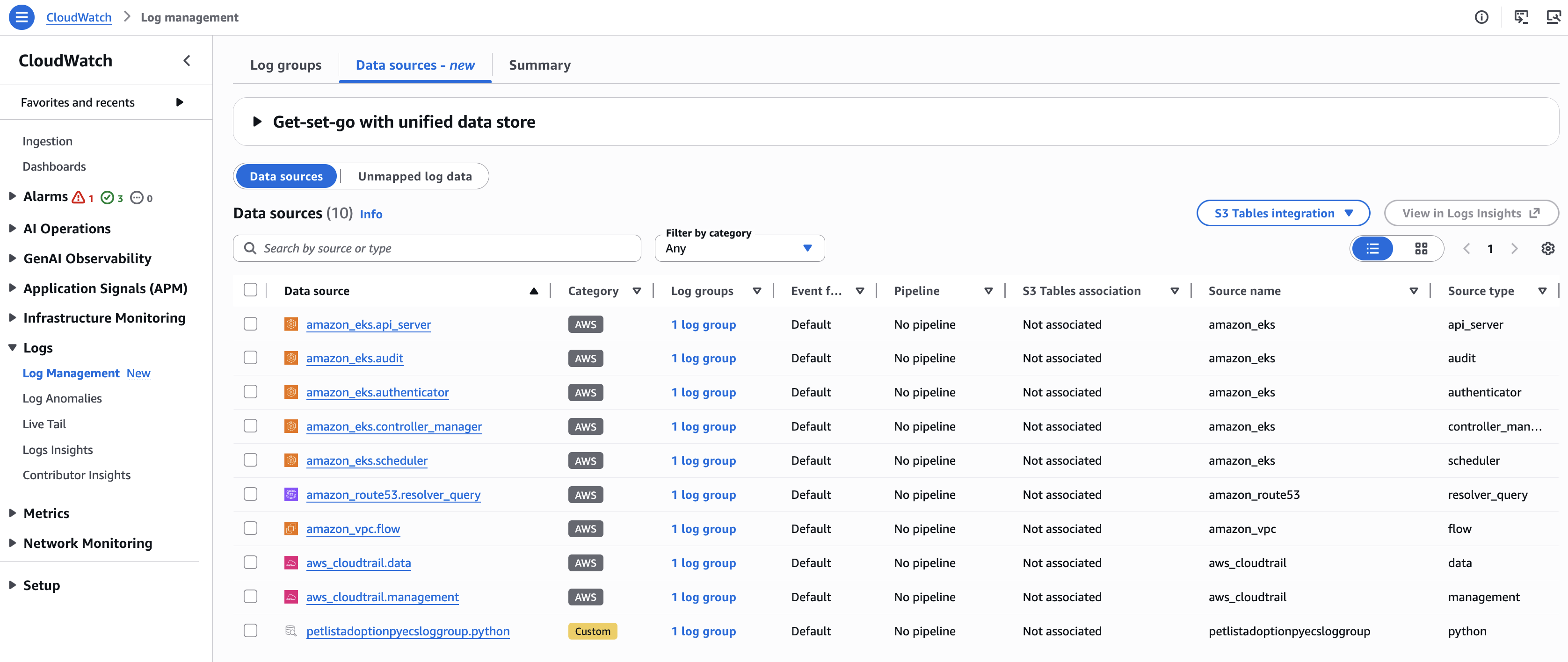
WARNING: It may take a few minutes for the log group to appear in Data sources after mapping and ingesting new data.
Summary
In this module, you learned how CloudWatch data sources organize and categorize logs based on their origin. You explored how to enable resource discovery, access data sources through the Log Management console, and configure custom application logs by mapping unmapped log data using log group tags.