Ingestion - enablement rules
Telemetry enablement rules automate log collection from AWS services such as Amazon VPC, AWS CloudTrail, Network Load Balancer, Route 53, and other supported services across your AWS Organization or individual accounts. Rules help you standardize telemetry collection across your organization or accounts and ensure consistent monitoring coverage.
Understanding enablement rules
CloudWatch telemetry configuration integrates with AWS Config to discover and manage resources:
- When you create an enablement rule, CloudWatch creates a corresponding AWS Config recorder
- The recorder discovers resources that match your rule criteria
- CloudWatch applies telemetry configuration to non-compliant resources (those without telemetry enabled)
- AWS Config tracks configuration changes over time
CloudWatch uses AWS Config internal service-linked recorders. You are not charged for configuration items (CIs) that CloudWatch uses as part of these internal recorders. Initial resource discovery may take up to 24 hours to complete in some cases.
Rule behavior patterns
| Scenario | Behavior |
|---|---|
| New resources | Enablement rules automatically apply to newly created resources that match the rule criteria |
| Existing VPC Flow Logs | CloudWatch creates new flow logs only for resources without existing flow logs |
| Existing CloudWatch Logs | Existing log groups are maintained if they match the resource pattern |
| Updating rules | Only new resources adopt the updated configuration; existing telemetry settings remain unchanged |
| Non-compliant resources | If telemetry is manually deleted, the rule reapplies when compliance is restored |
Rule components
An enablement rule consists of:
| Component | Description |
|---|---|
| Rule scope | Organization, organizational unit (OU), or account |
| Resource types | The AWS services the rule applies to (VPC, EKS, CloudTrail, WAF, etc.) |
| Telemetry types | Logs, metrics, or traces |
| Optional filters | Tags to target specific resources |
Create enablement rules
In this section, you'll create an enablement rule for the CloudTrail data source. CloudTrail collects API activity data across your AWS environment, including management and data events. These logs provide visibility into account activity and resource changes for security analysis, compliance auditing, and operational troubleshooting.
Prerequisites
For the purpose of demo, ensure you have a CloudTrail trail configured with the following settings:
- Management events: All management events logging enabled
- Data events: Enabled for Lambda resource
Note: A demo CloudTrail trail with required configuration is pre-created for this workshop. If you're following along in your own account, see Create a trail to log management events for setup guidance.
Step-by-step instructions
1) Go to the CloudWatch Console.
2) In the navigation pane, choose Ingestion and select Enablement rules.
3) Click Add rule and provide the following details:
- Specify scope: -> Select AWS CloudTrail as data source and click Configure telemetry - Rule name: CloudTrail-TurnOnLogging-demo - Click Next
- Specify destination: -> Leave default options and click Next
- Select data options: -> Event type: Select Management events -> Management events: Select All events -> Click Next
4) Review the details and click Configure CloudTrail enablement.
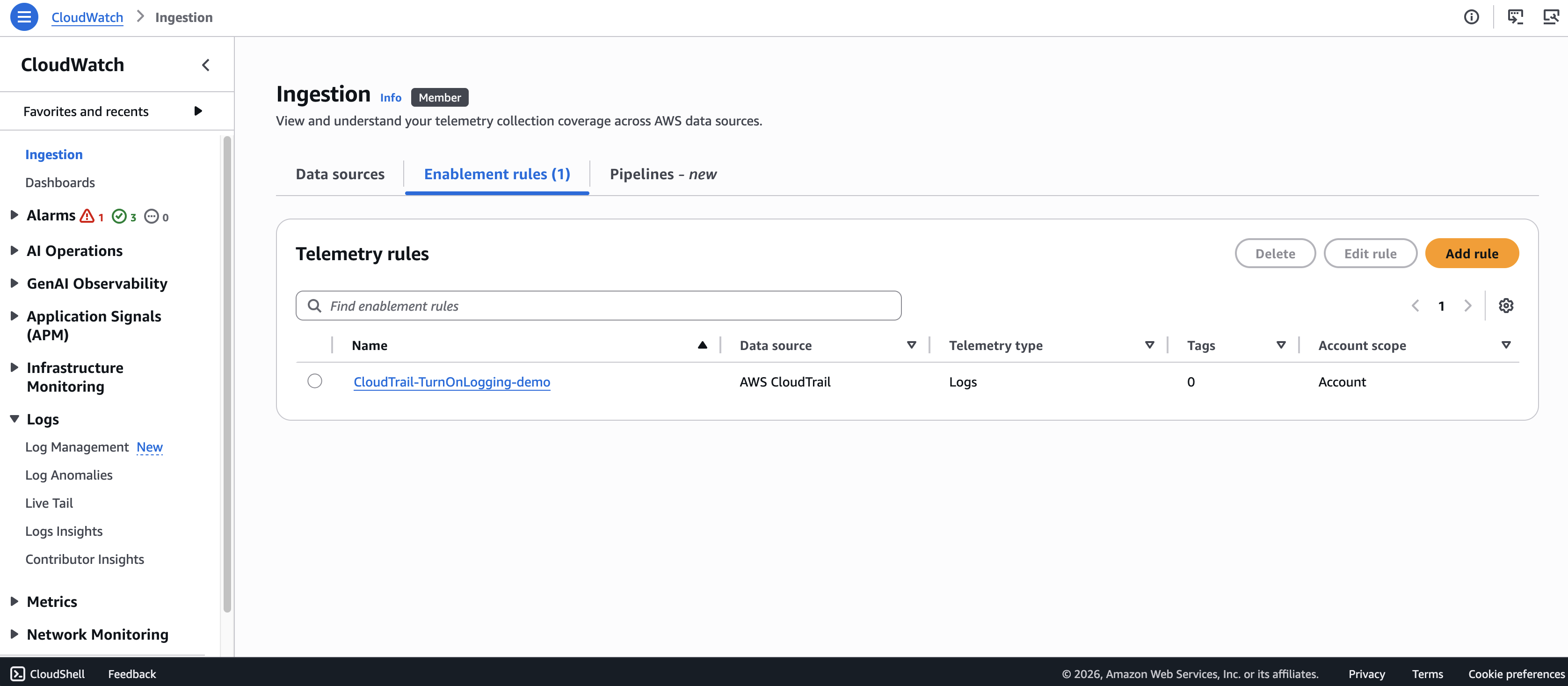
After the telemetry rule is configured, a log group will be created with the name aws/cloudtrail/managementevents as per the configuration defined in the telemetry enablement rule.
Inspect CloudTrail management events
1) Go to the CloudWatch Console.
2) In the navigation pane, choose Logs → Log Management.
3) Filter and select the log group aws/cloudtrail/managementevents.
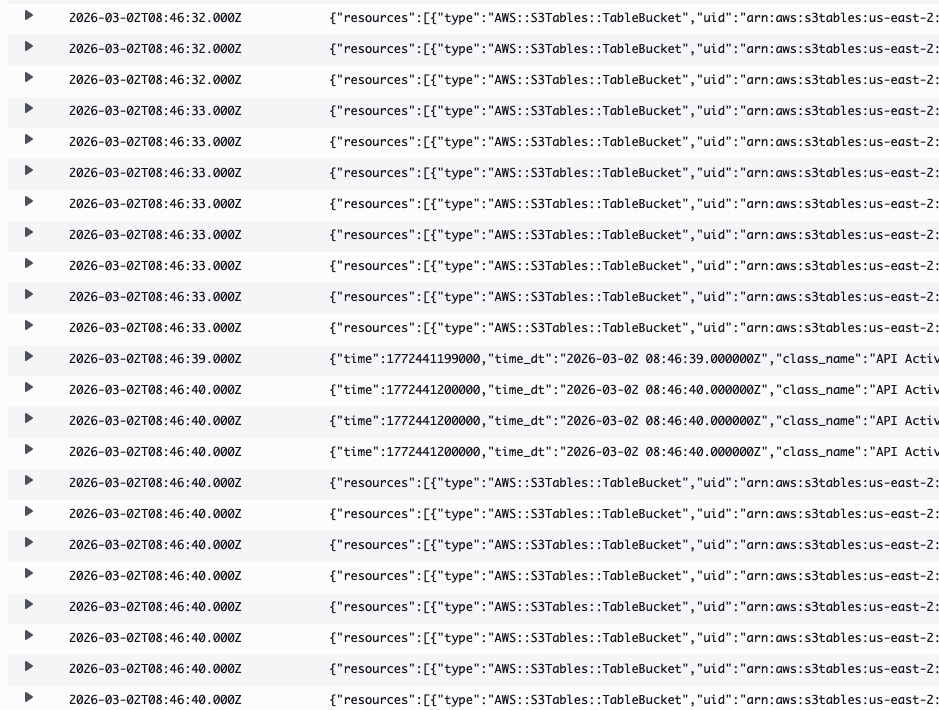
4) Inspect the management events logging in that log group.
Manage enablement rules
Viewing rules
1) Go to the CloudWatch Console.
2) In the navigation pane, choose Ingestion and select Enablement rules.
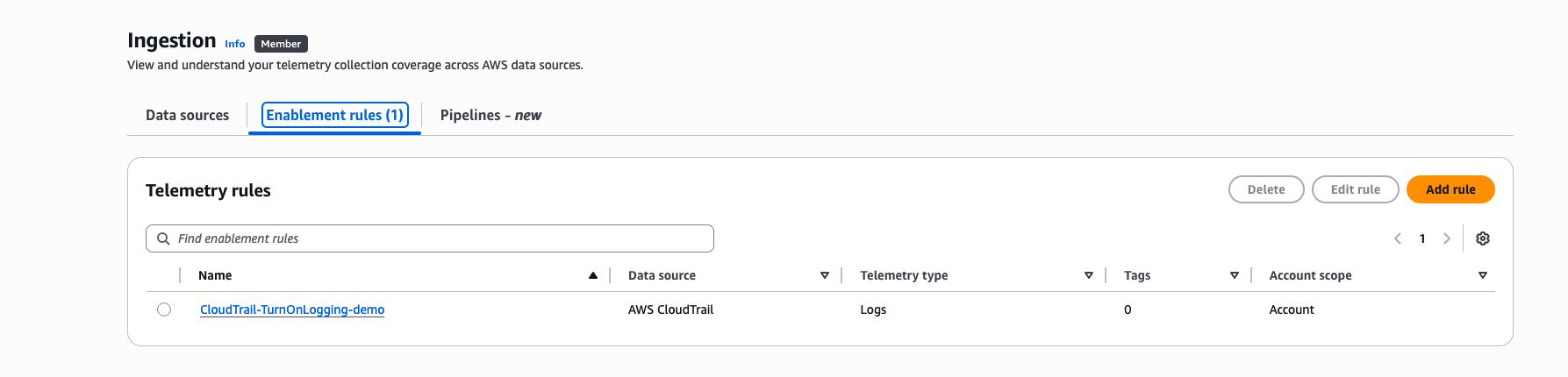
3) View all rules with details such as Data source, Telemetry type, and scope.
Editing rules
1) Go to the CloudWatch Console.
2) In the navigation pane, choose Ingestion and select Enablement rules.
3) Select the rule CloudTrail-TurnOnLogging-demo and click Edit rule.
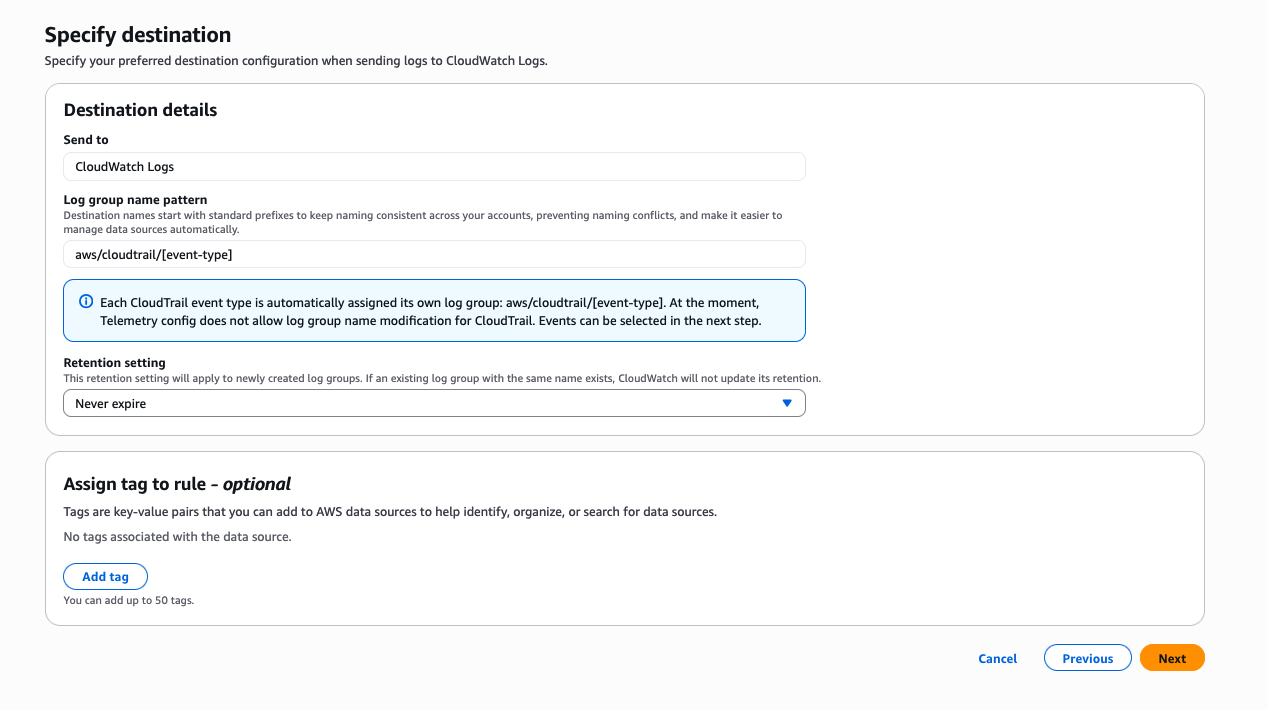
4) Skip to Next step (Telemetry config does not allow log group name modification for CloudTrail).
5) For Select data options, choose Data events*:
- Resource type: Select AWS::Lambda::Function
- Log selector template: logAllEvents
- Click Next
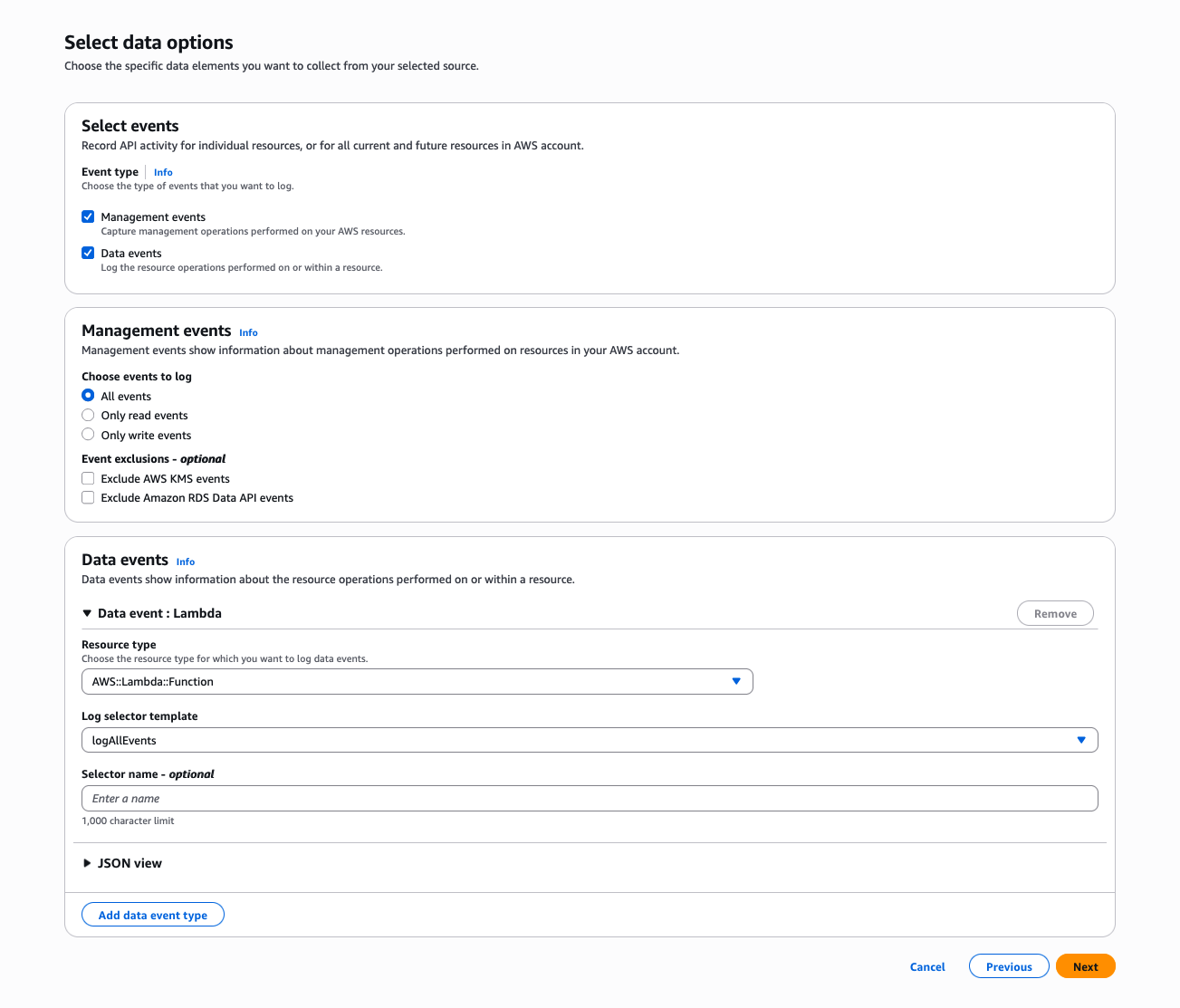
6) Review the details and click Update rule.
Since we have enabled data events, a new log group will be created with the name aws/cloudtrail/dataevents with data events related to AWS Lambda service.
WARNING: Ensure you have enabled data event logging for any existing or new CloudTrail trail.
Deleting rules
1) Go to the CloudWatch Console.
2) In the navigation pane, choose Ingestion and select Enablement rules.
3) Select the rule you want to delete and click Delete.
WARNING: Deleting a rule does not remove telemetry configurations already applied to resources. It only prevents the rule from applying to new resources.
Summary
In this module, you learned how to automate log collection using CloudWatch telemetry enablement rules. You created an enablement rule for CloudTrail to collect management events, verified the log group creation, and edited the rule to add data events for Lambda functions.
Enablement rules help you maintain consistent monitoring coverage across your AWS environment by automatically collecting telemetry data as resources are created.